Before you start
Clubface doesn't move or rebuild your website. Your pages, words, photos, tee times and members' area all stay in Club Systems, exactly where they are now. Clubface makes a small piece of code (we call it a script) that changes how those pages look. If you ever take the script out, your site goes straight back to how it was.
- A computerWindows or Mac, with Chrome, Edge, Firefox or Safari. A phone or tablet won't do for this part.
- Your club websiteThe address you'd type to visit it, for example www.yourgolfclub.co.uk.
- A Club Systems admin loginOne that can open Club Site > Scripts. If you're not sure, ask whoever looks after your website.
- About 15 minutesLess next time. You can stop at any point and nothing changes on your site.
| To do this | Windows | Mac |
|---|---|---|
| Select everything | Ctrl + A | Cmd + A |
| Copy | Ctrl + C | Cmd + C |
| Paste | Ctrl + V | Cmd + V |
Hold down the first key, tap the second, then let go of both.
The pictures in this guide use a made-up club, "Your Golf Club". Your own site will have your own name, photos and pages.
Step 1Open Clubface
- On your computer, go to clubface.co.uk.
- Click Try the builder. You can use the builder straight away without an account, and see your own pages with their new look.
- When you want it on your own website, start a free 30-day trial (click Free trial at the top, or wait until step 6). Everything you've done in the builder comes with you. With an account your work is saved, you can pick it up on another computer, upload your own videos and photos, and invite other people from your club.
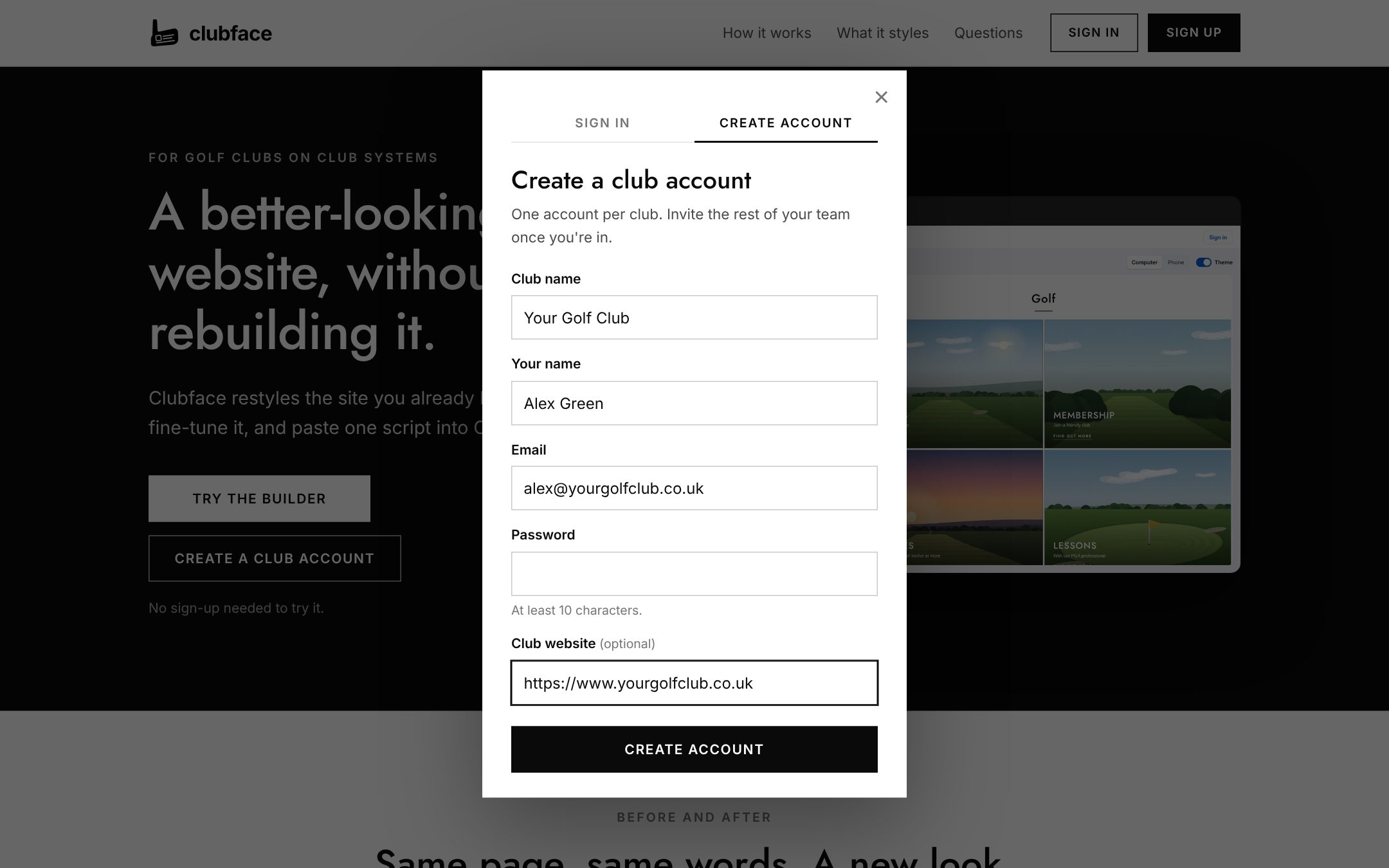
The builder has five steps across the top: Pages, Theme, Blocks, Updates and Publish. The left side is where you choose things; the right side shows a preview of your page.
Step 2Copy your page source
Clubface needs a copy of a page from your website so it can see which blocks you've used. Every web page has a "page source": the code your browser reads to draw it. You don't need to understand it, just copy all of it. It sounds technical but it's only three key presses.
- Open a new tab in your browser and go to your club website. Start with your home page.
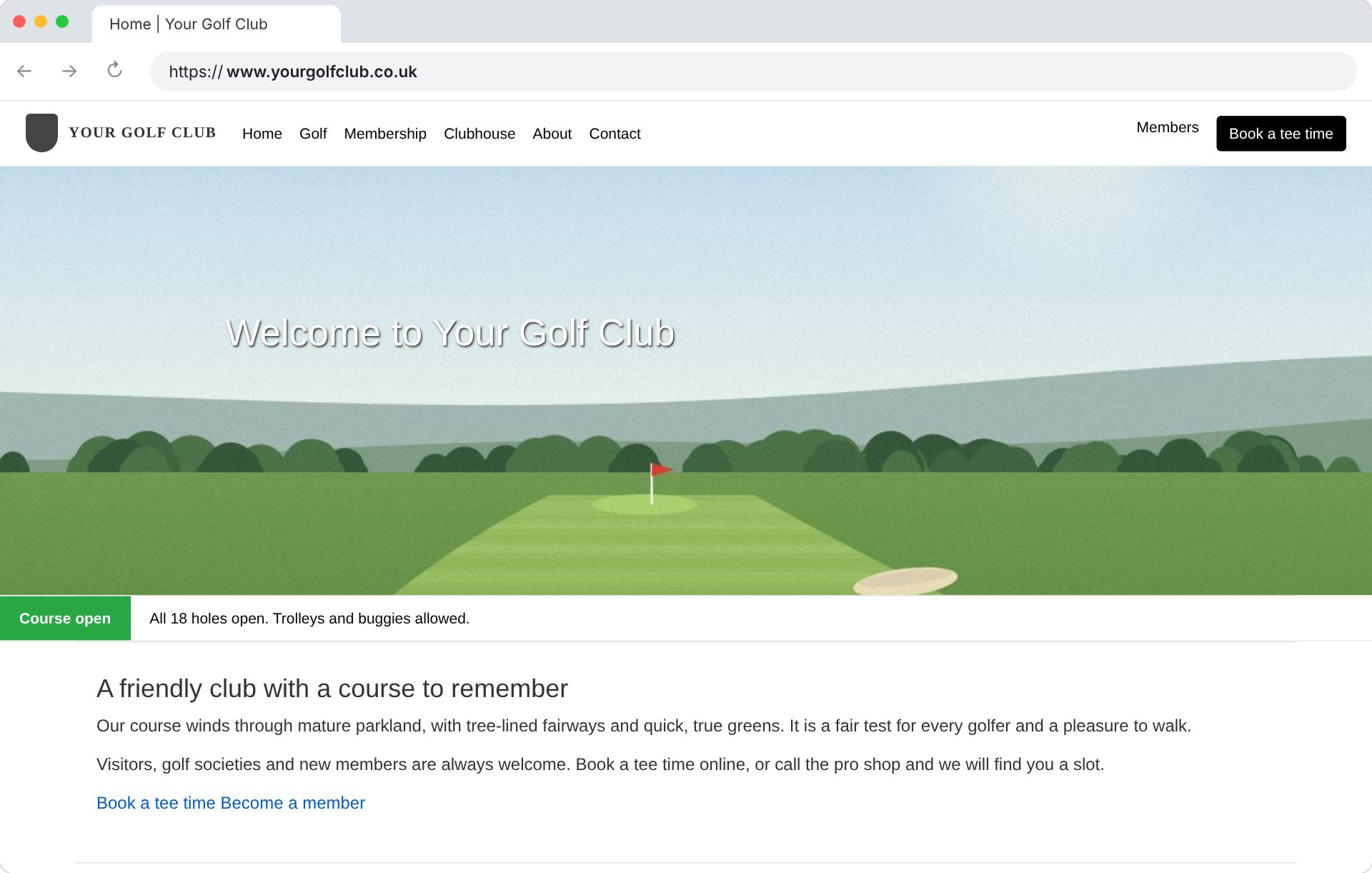
The club's home page as it looks now, before Clubface. - Press Ctrl + U (on a Mac, Cmd + Option + U). A new tab opens full of code. Its address starts with
view-source:.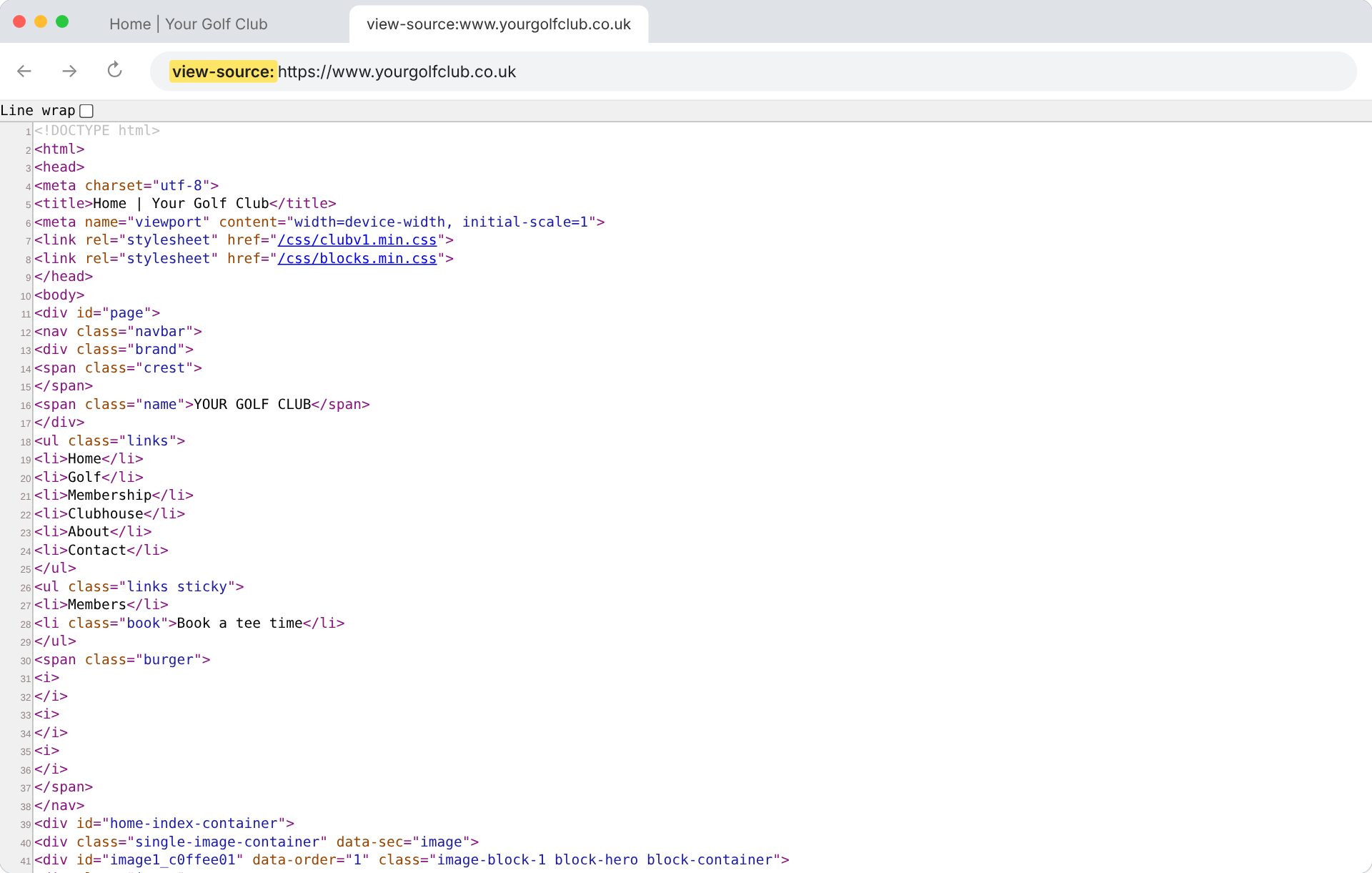
The page source opens in its own tab. Don't worry about what it says. If nothing happens, right-click on an empty part of the page (not on a photo or link) and choose View page source.
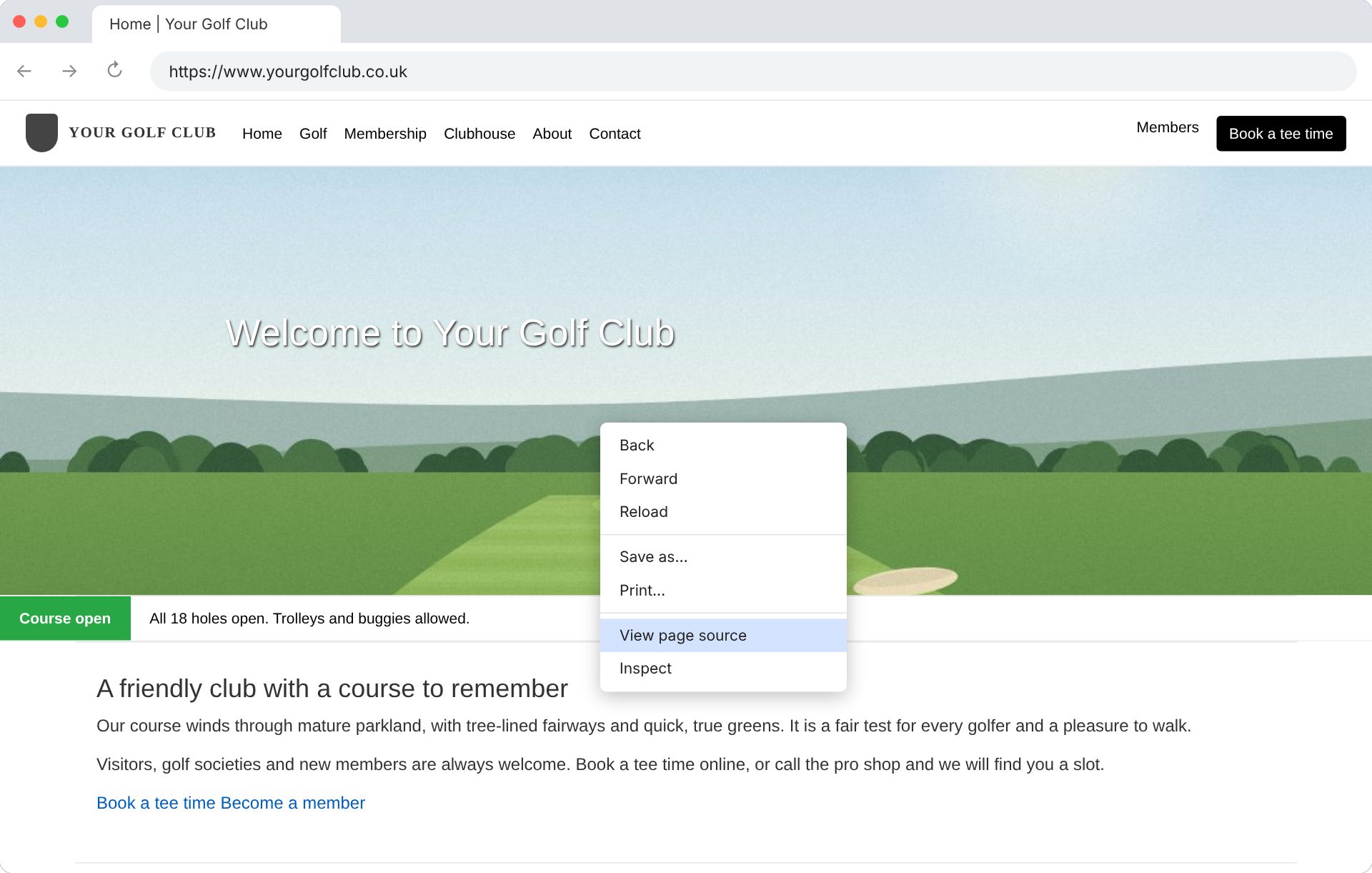
The same thing from the right-click menu. - Click anywhere in the code, then press Ctrl + A to select it all. Everything turns blue.
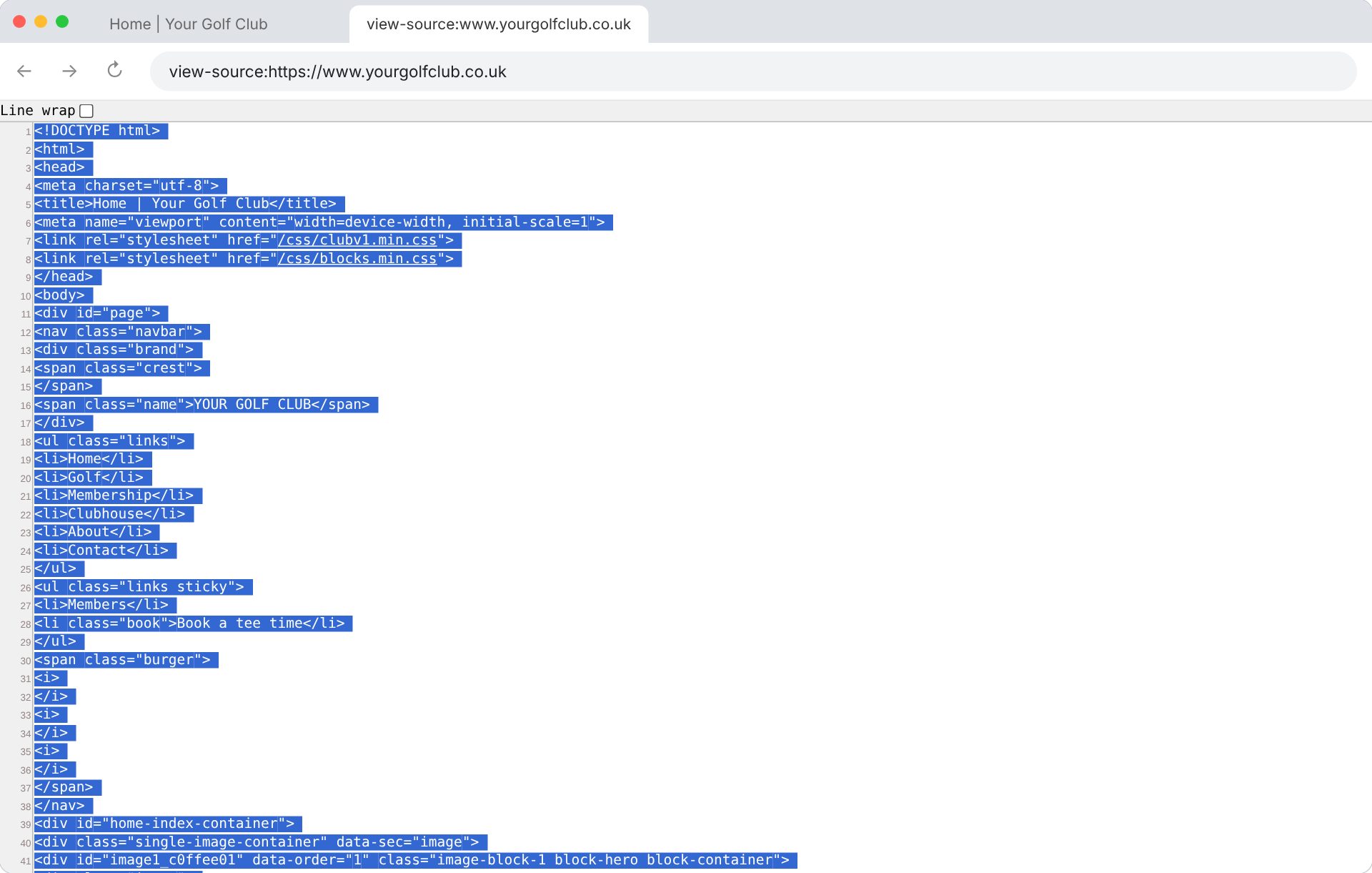
All of the code is selected. - Press Ctrl + C to copy it. Nothing seems to happen, but it's now copied, ready to paste.
Safari hides the page source until you switch it on once: open Safari > Settings (or Preferences), click Advanced and tick Show features for web developers (on older Macs, Show Develop menu in menu bar). After that, Cmd + Option + U works. Chrome on a Mac works without this.
Open your website the normal way, not the editing screen inside Club Systems. The page source of the admin pages won't work.
Step 3Add your pages to Clubface
- Go back to the Clubface tab. You'll be on Pages, with a box that says Paste the page source here.
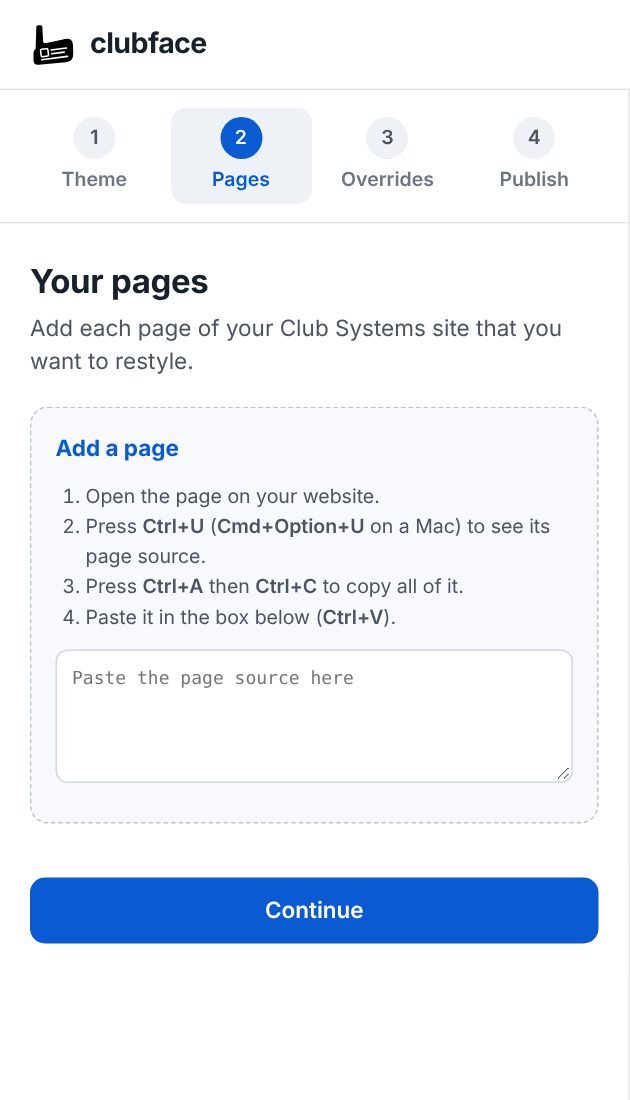
- Click in the box and press Ctrl + V to paste. Clubface reads it and tells you what it found, for example Found the Home page, 5 blocks.
- Click the blue Add Home page button.
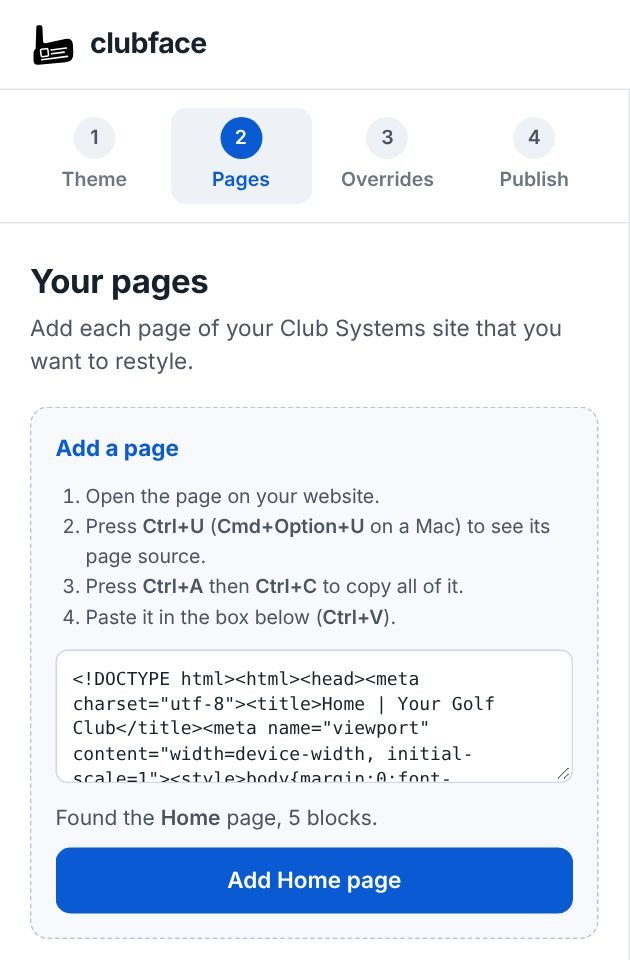
After pasting: Clubface has found the page and its blocks. - Your page appears on the right with its new look. The page is now in Your pages, with the date you added it.
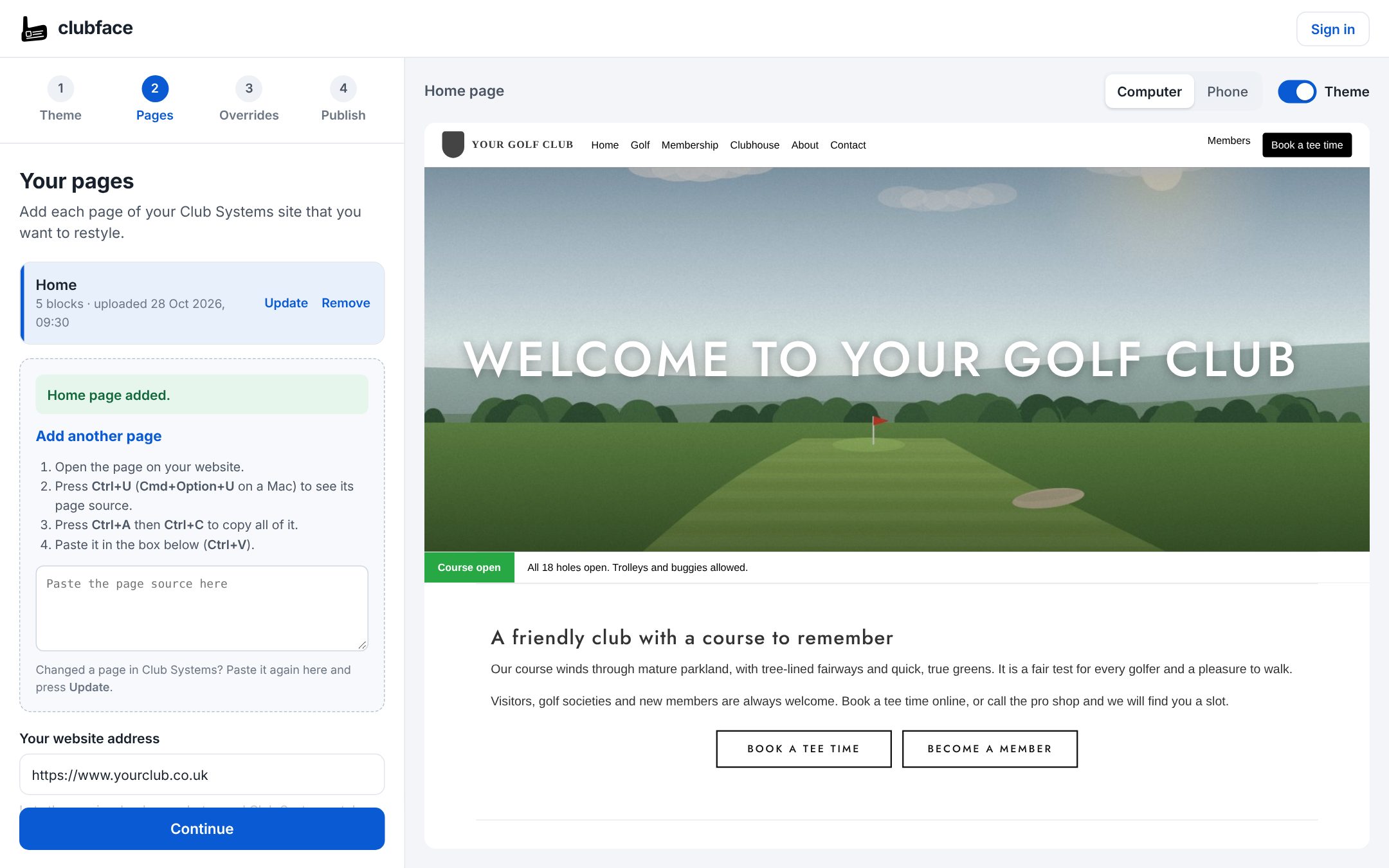
The home page is added and the preview shows it in Classic Black. - Type your website address into Your website address (for example
https://www.yourgolfclub.co.uk). This helps the preview load your photos.
Add your other pages the same way: open the page on your website, Ctrl + U, Ctrl + A, Ctrl + C, then paste into Add another page. Membership, Visitors, Societies and Contact are good ones to add. The more pages you add, the better: each one brings its own kinds of block into Blocks, and lets you preview it before anyone else sees it. You don't need every page, because the look applies to your whole site anyway.
Pages are kept as soon as you add them. Use the menu on the left to go on to Theme. From there, Save sits at the top of the panel: changes are only kept once you press it.
Step 4Choose your theme
Now go to Theme. A theme is the overall style. There are three: Classic Black (clean capital headings, already ticked), Heritage (serif headings and fine lines) and Modern (bold headings and pill buttons).
Then set your club colours. There are four: your club colour (buttons, coloured bands and the footer), a highlight for small touches such as the line under headings, the background and the text. Choose your logo and Clubface suggests sets taken from it, pick a ready-made set, or set each colour by hand. If a colour would be hard to read, Clubface says so and Fix it darkens it just enough.
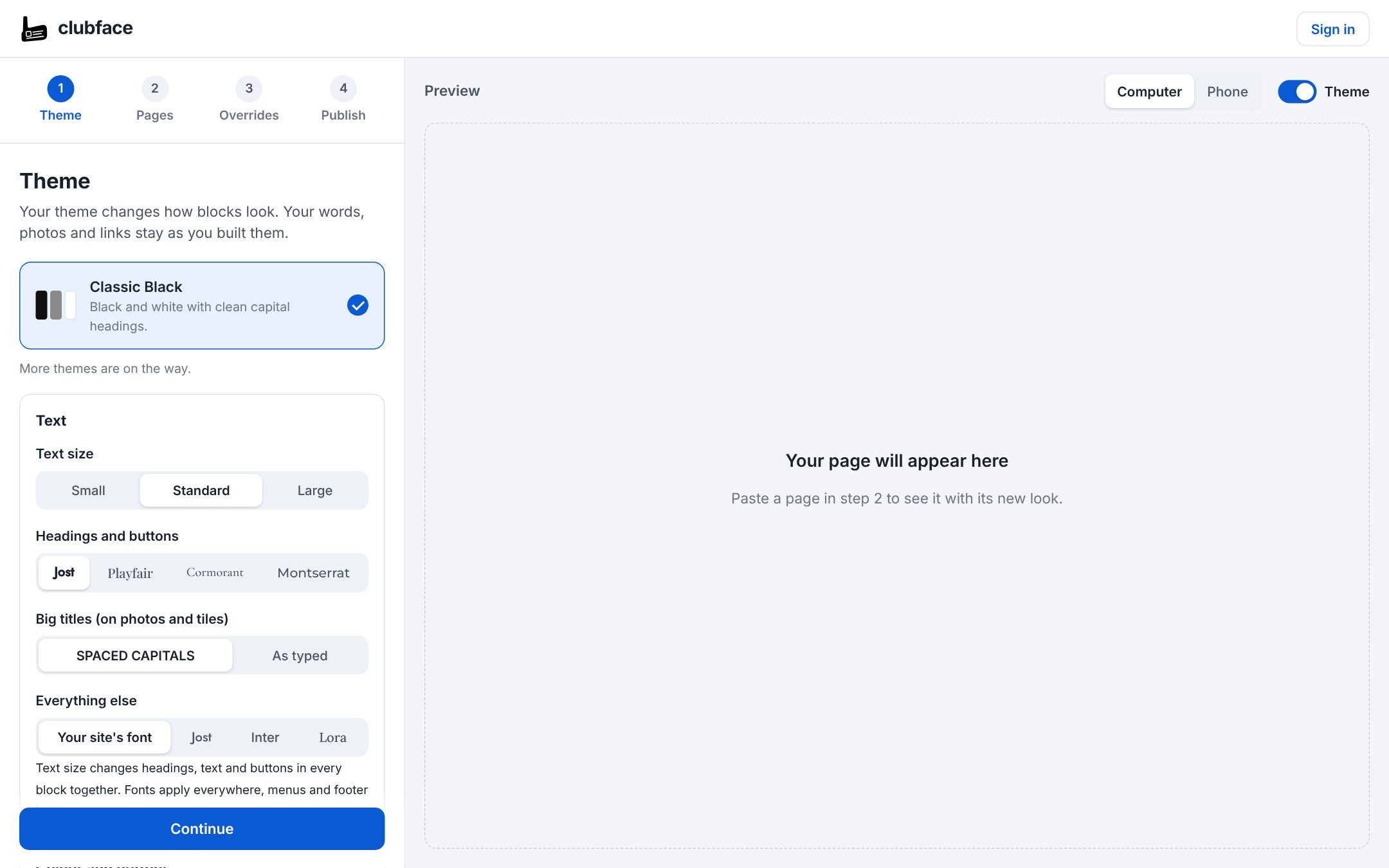
Underneath are settings for your whole site: text size, fonts, whether big titles are in capitals, button style, the space between blocks, a gentle fade-in as people scroll, and the footer colour. You don't have to change any of these. The standard settings look good, and the preview shows your own page as you change them.
Press Save, then the › arrow.
Step 5Fine-tune the blocks (optional)
Club Systems pages are made of blocks: a Single Image Block, a Text Block, a Slider Block and so on. In Blocks you'll see one card for each kind of block found on your pages, with how many there are and which pages they're on.
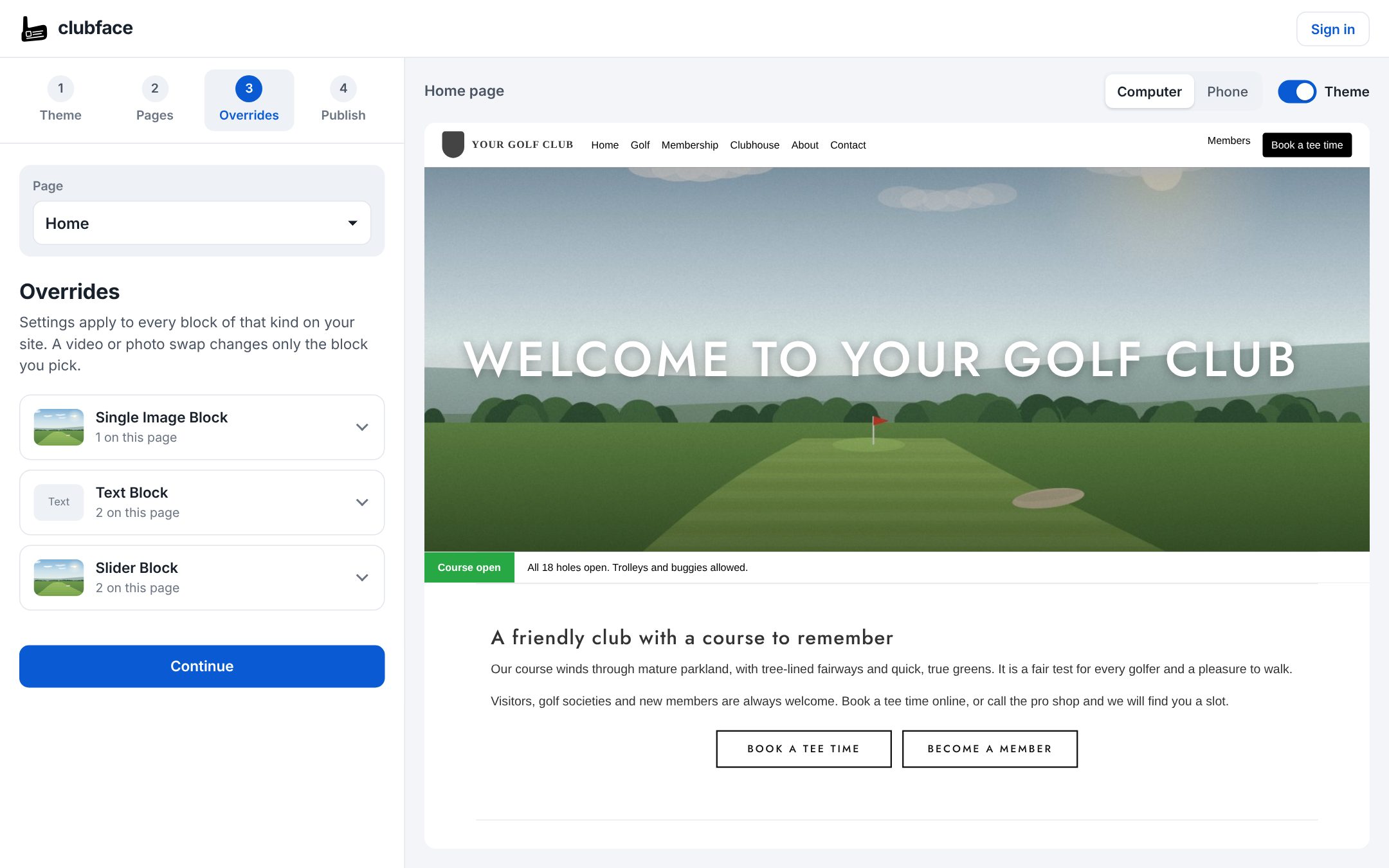
Change how a kind of block looks
- Click a card to open it.
- Click Show me to scroll the preview to that block.
- Pick an option and watch the preview change. For example, a Slider Block can be Swipe cards (the updated slider) or stay as Club Systems' own slider.
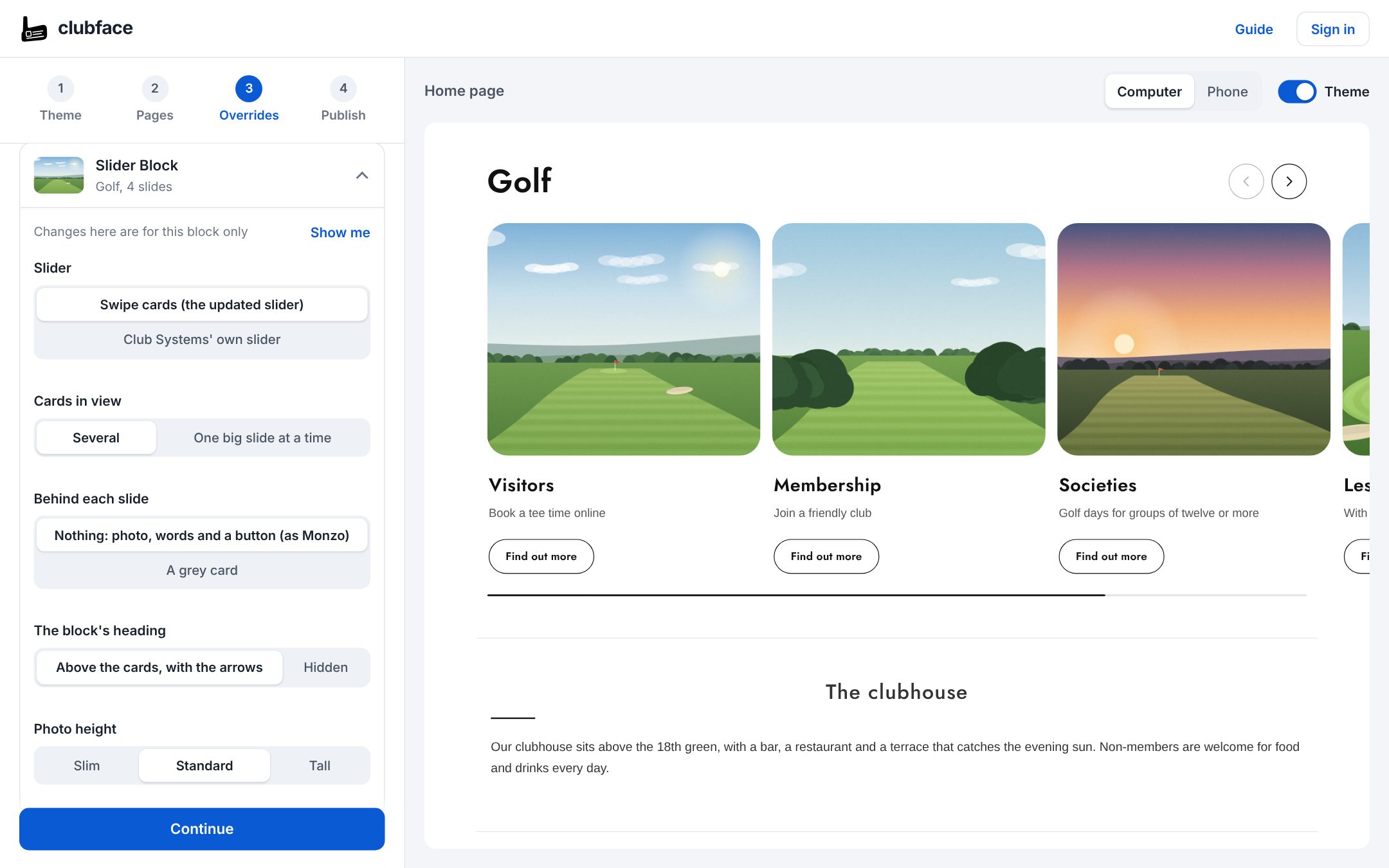
These settings apply to every block of that kind across your site, so all your sliders match.
Swap in a video or photo for one block
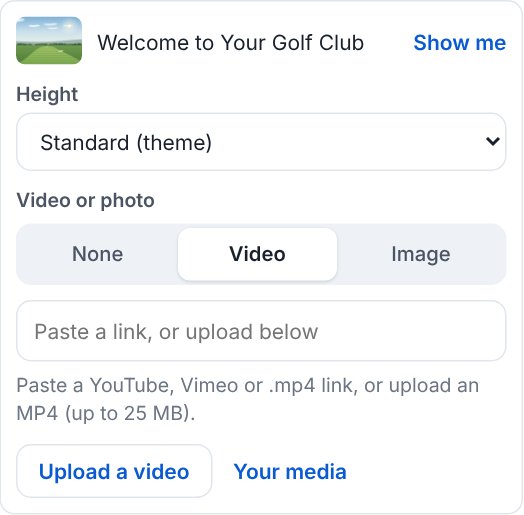
Updates lists every Single Image block and Hole By Hole block on your pages, with the page each one is on. Use Show to see just one page's blocks. Click a block to open it (its page opens in the preview). For a Hole By Hole block you open each hole where you open each hole to add its sponsor, flyover video, map and new photos. Choose Video or Image, then either paste a link (YouTube, Vimeo or an .mp4 file) or click Upload a video / Upload a photo to use one from your computer. Uploading needs a club account. This only changes the block you picked.
Check it on a phone, and compare before and after
Above the preview, click Phone to see the page as it will look on a mobile, and Computer to go back. Turn the Theme switch off to see your page as it is today, and on again to see the new look.
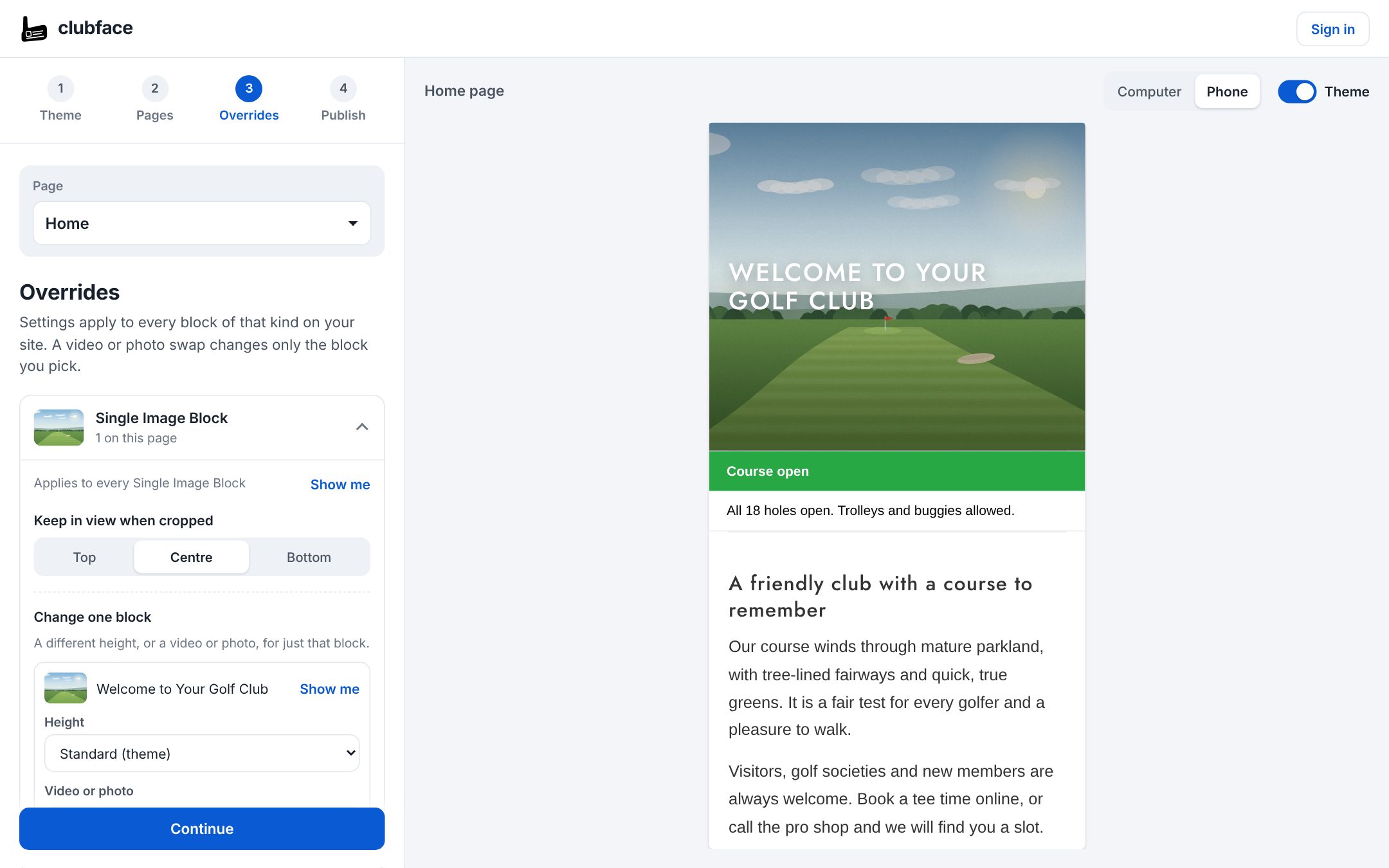
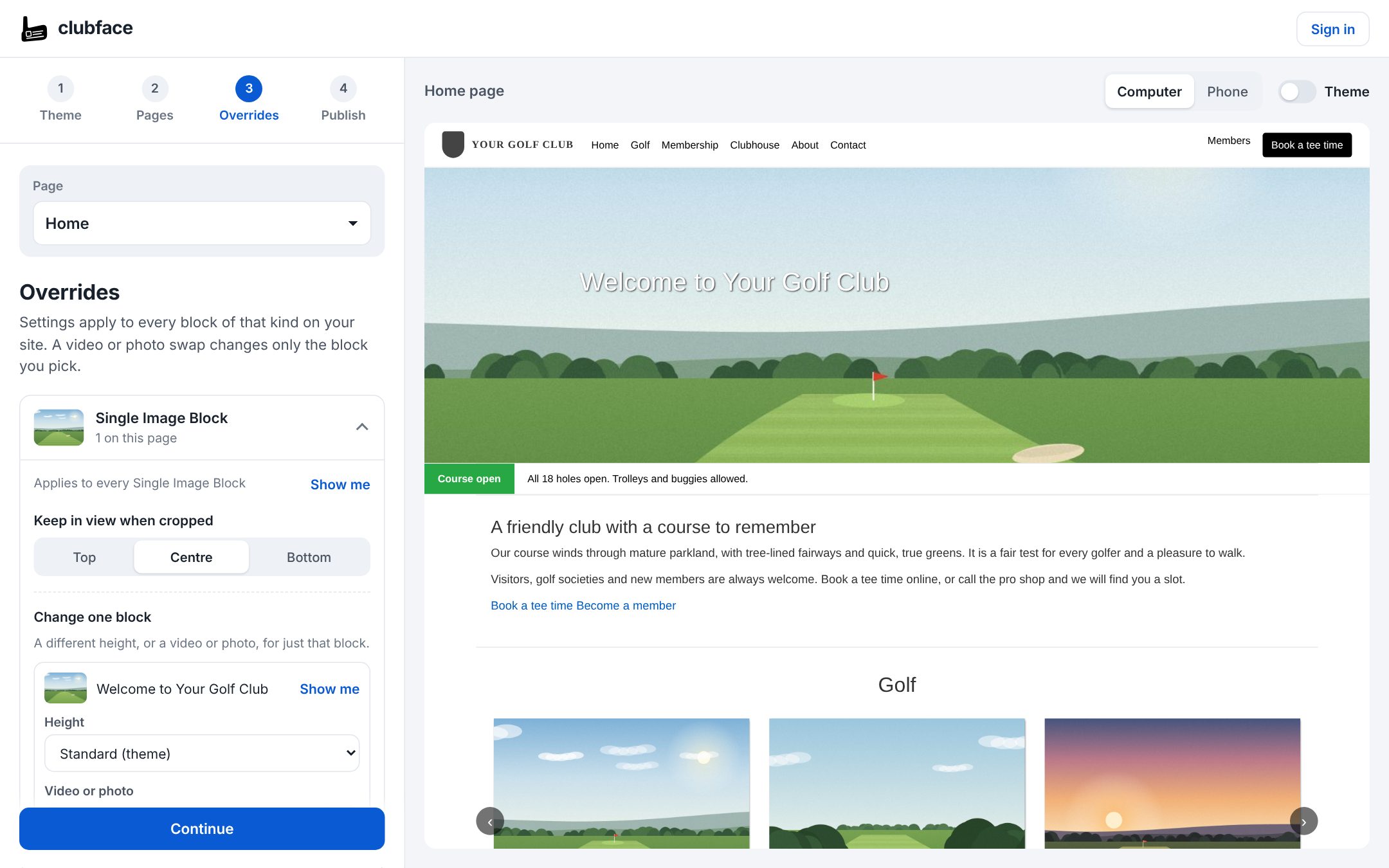
Happy? Press Save, then the › arrow.
Step 6Start your free trial
Go to Publish. To put the new look on your own website you need a Clubface account, which starts with a free 30-day trial. No card is needed.
- Click Start free trial.
- Enter your club's name, its website address, your name, your email and a password of at least 10 characters.
- Click Start free trial. Everything you've done in the builder is saved to your club, and you're taken back to Publish.
At the top of Publish you'll see how many days your trial has left and the date it ends. Everything works during the trial: test mode and publishing to everyone. There's one trial for each club website.
Step 7Paste one line into Club Systems
In Publish there's a single line that starts <script src="https://clubface.co.uk/s/. Click Copy next to it. You only ever paste this once: after that, every change you save in Clubface reaches your site by itself.
- In a new tab, log in to your Club Systems admin as you normally would.
- From the Club menu at the top, open Club Site settings (the page heading reads Club | Club Site | Settings).
- Click the Scripts tab, then Header Scripts on the left.
- You may already see some numbered boxes, each holding a script (for example Google Analytics or a chat widget). Leave them exactly as they are. If one holds an older Clubface script (it starts
<!-- Club Theme:), delete that one. - Click Add Header Script. A new, empty numbered box appears at the bottom of the list.
- Click inside the new box and press Ctrl + V to paste your Clubface line.
- Click Save at the bottom.
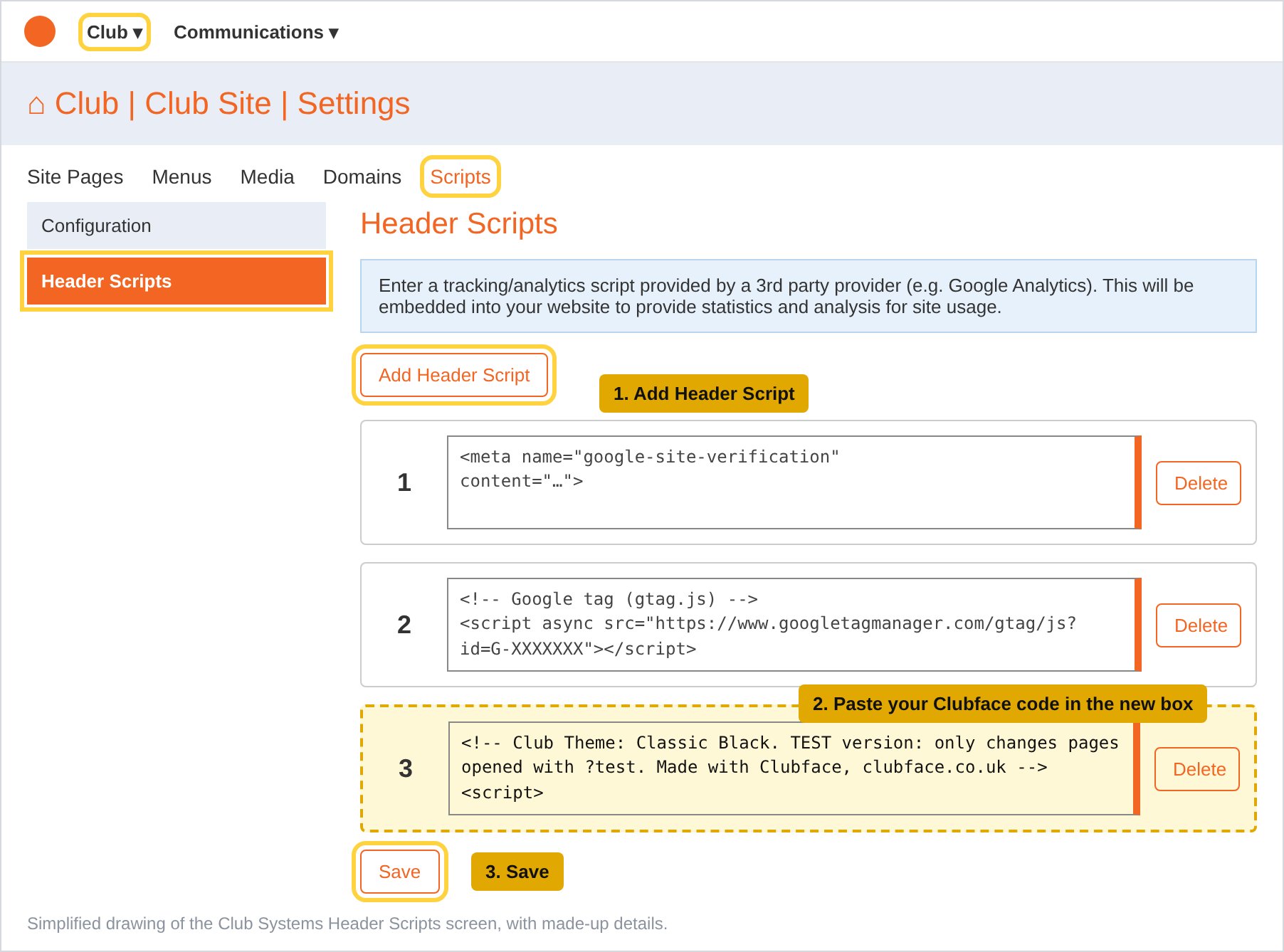
Only ever have one box with Clubface in it. Pasting the line in now doesn't change anything for your visitors: they only see the new look after you press Publish.
Step 8Check it with ?test
- In Publish, click Open my site in test mode. Or open your website and type
?teston the very end of the address, then press Enter:www.yourgolfclub.co.uk/?test. - The page shows your saved changes, and a small black Test mode note sits in the bottom corner.
- Click around your site as normal. Test mode stays on in your browser from page to page, so you don't have to keep typing
?test. - When you've finished, click Turn off on the note. Your browser goes back to seeing what visitors see.
Test mode is kept in your own browser. Your visitors see your site as it is until you publish. On a trial, the footer also says when your trial ends, but only in test mode.
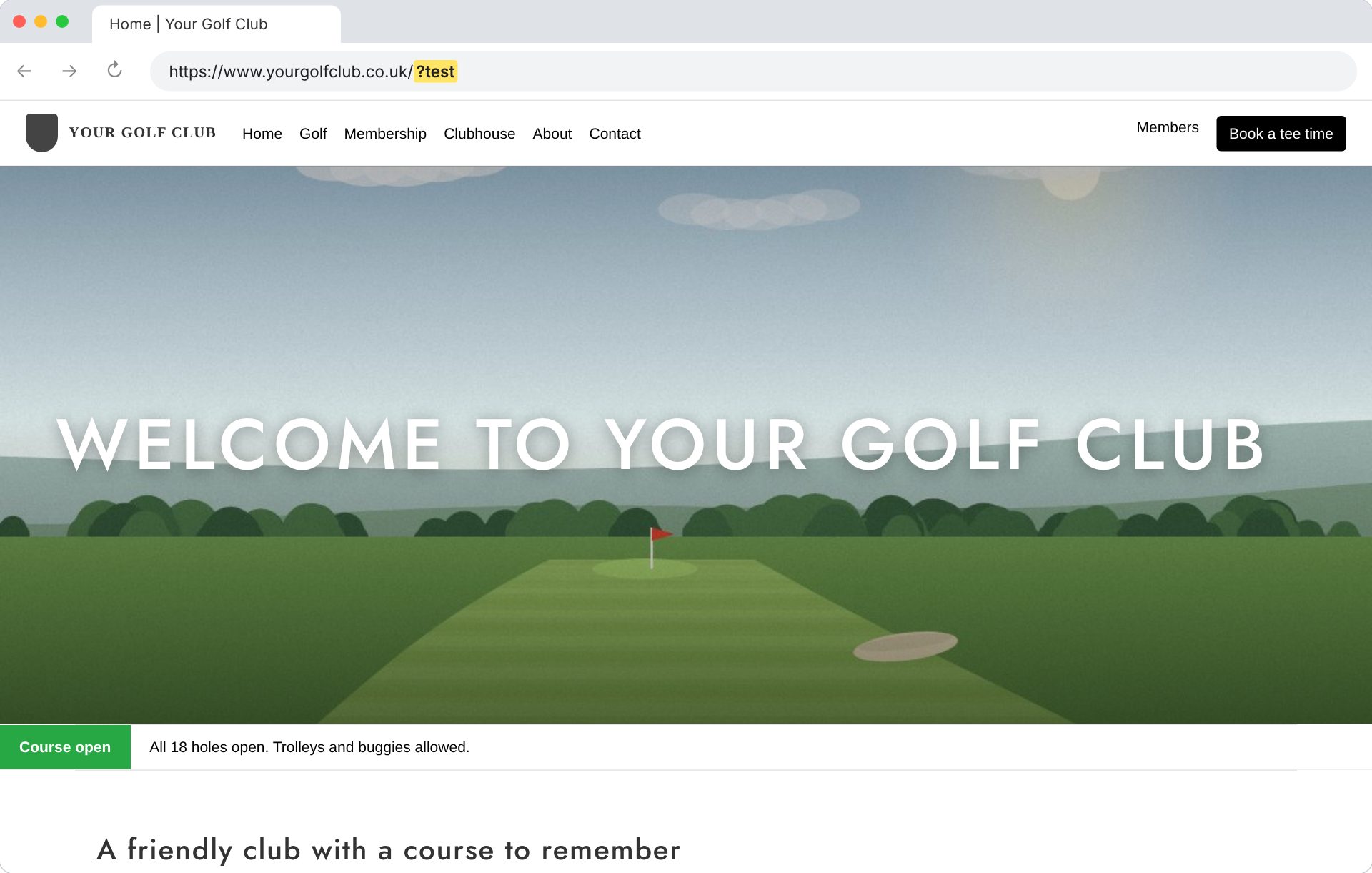
?test on the end of the address: the new look.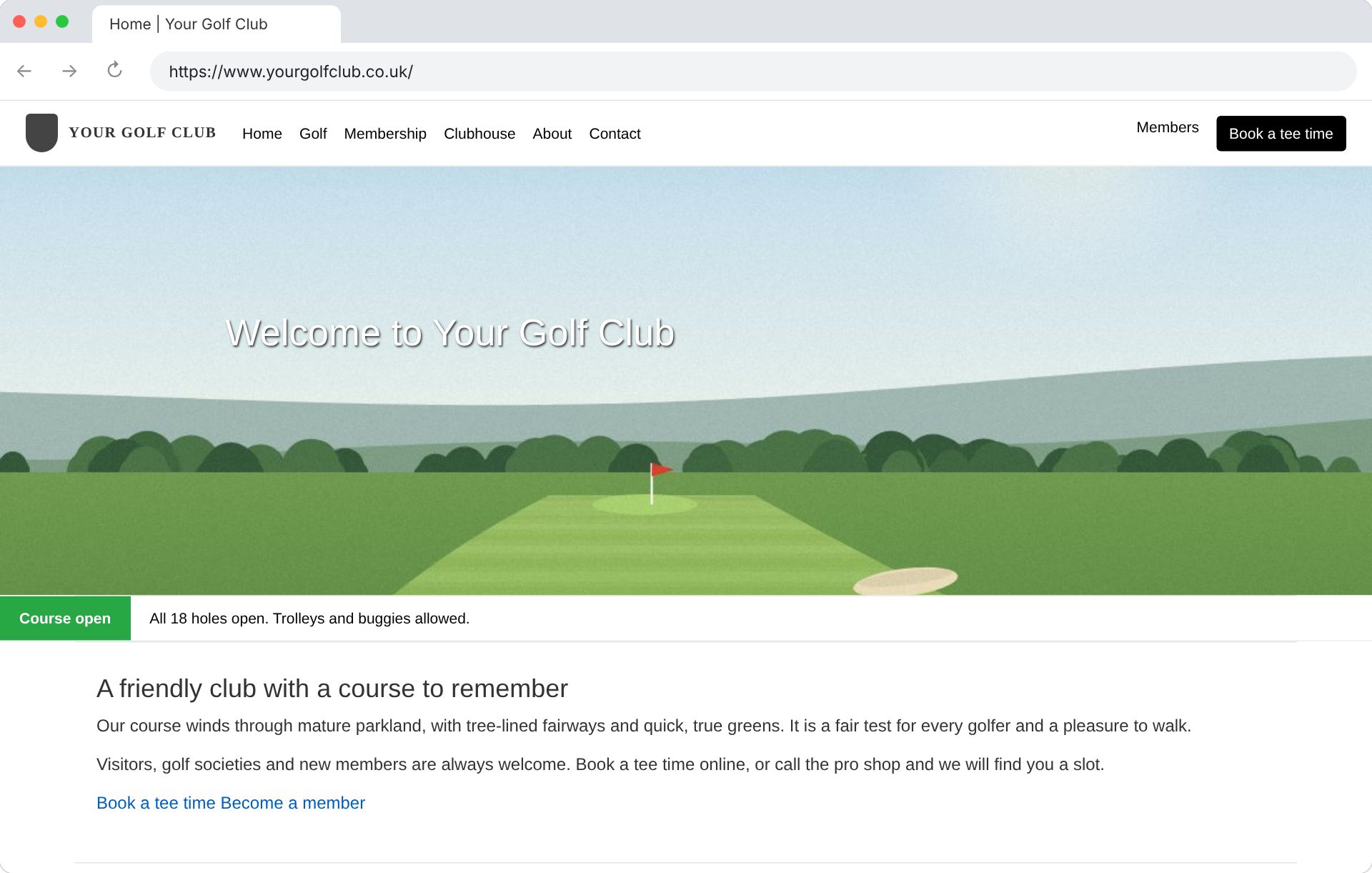
Look through your main pages this way, on your computer and on your phone. Show it to your committee: anyone who opens a page with ?test sees it too. If you want to change something, change it in the builder and press Save. Refresh the page on your site and it's there.
Step 9Publish
When you're happy, go to Publish in Clubface and click Publish to everyone. Within a few minutes every visitor sees the new look. There's nothing to paste again.
Want to see a page without the theme once it's live? Add ?plain to the end of its address. To take the theme off for visitors, click Take the theme off for visitors in Publish; your settings stay and test mode still shows them.
Making changes later
You change your pages in Club Systems
Carry on editing words, photos and pages in Club Systems as normal. The new look follows automatically. If you add new blocks and want to fine-tune them, paste that page into Clubface again: on Pages, click Update next to the page and paste the new page source.
You want to change the look
- Open the builder and sign in. Your settings are there.
- Make your changes and click Save. They show straight away on your site in test mode.
- When you're happy, click Publish my saved changes in Publish.
You want to remove Clubface
In Header Scripts, click Delete next to the box with the Clubface line in it, then click Save. Your site is exactly as it was before.
Your trial and subscription
- Your free trial lasts 30 days from the day you start it. Saving or publishing changes doesn't move that date.
- Clubface reminds you in the builder as the end gets close.
- A subscription runs for a year. Renewing early adds the year on from your current end date, so you don't lose any days.
- If a trial or subscription ends, your website simply goes back to its own look. Nothing breaks, and the line in Header Scripts can stay. Your settings and pages are kept, so subscribing brings the theme straight back.
To subscribe or renew, email info@clubface.co.uk. We can invoice your club.
If something goes wrong
Clubface says "That doesn't look like a page source"
Only part of the code was copied, or something else was. Go back to the page source tab, click inside the code, press Ctrl + A and then Ctrl + C, and paste again. Make sure you copied from the view-source: tab, not the normal page.
It says no Club Systems blocks were found
Make sure you copied the page from your public website (what visitors see), not the editing screen in the Club Systems admin, and that you copied all of it.
Ctrl+U doesn't do anything
Right-click an empty part of the page and choose View page source. In Safari, switch on the developer features first (see step 2). In Firefox and Edge, Ctrl + U works the same as Chrome.
I added ?test but nothing changed
Check that you clicked Save at the bottom of Header Scripts, that the Clubface line went into a box of its own, and that ?test is at the very end of the address with no spaces. If your trial or subscription has ended, the line does nothing until you renew. Then refresh the page (Ctrl + F5, or Cmd + Shift + R on a Mac).
Adding ?test breaks the page or shows "page not found"
The address already had a ? in it (for example CustomPage?pageId=2466). Type &test on the end instead of ?test: CustomPage?pageId=2466&test.
Some blocks still look the same
Clubface styles the most-used blocks, and more are being added. Blocks it doesn't style yet show as "Coming soon" in Blocks and stay as they are on your site.
Something looks wrong and I want it back to normal now
In Header Scripts, click Delete next to the Clubface box and click Save. Your site goes straight back to how it was. Then email us and we'll help.
Will this affect tee bookings or the members' area?
No. Clubface only changes the look of your website's pages. Bookings, logins and everything else in Club Systems work as before.
Still stuck? Email info@clubface.co.uk with your website address and what you see, and we'll help you get set up.